






09 Nov 10 Outlook tips that save you time every day
Most of us spend a good chunk of every working day in Outlook. These simple Outlook tips can win back a surprising amount of that time.
These 10 Outlook tips are written for the new Outlook for Windows, which is now the standard version on new Windows 11 PCs. Most also work in Outlook on the web. If you’re still using the older “classic” Outlook, or a Mac user, there’s a short section for you at the end.
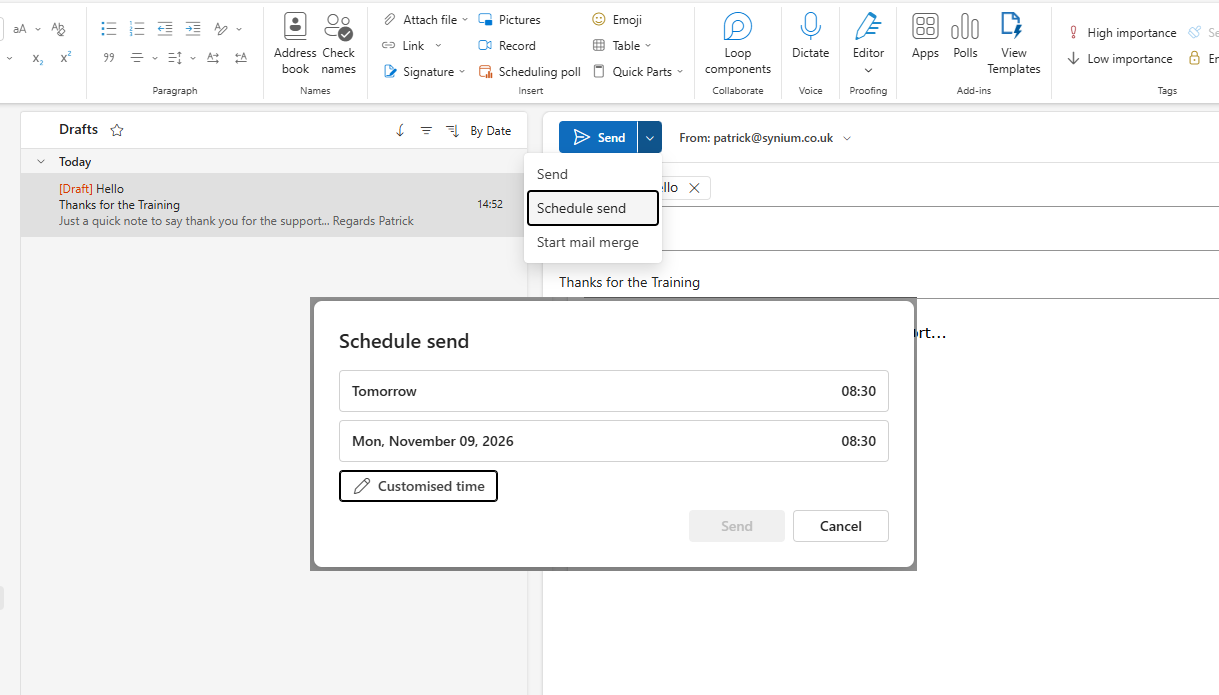
1. Schedule an email to send later
Writing emails late in the evening or at the weekend? You can schedule them to arrive at a sensible time instead.
- Write your email as normal.
- Select the small arrow next to Send, then Schedule send.
- Pick one of the suggested times, or choose your own date and time.
The email waits in your Scheduled folder until it goes. You can open it and change it before then.
2. Turn on Undo send
We’ve all sent an email and immediately spotted the missing attachment or the wrong name. Undo send gives you a few seconds to pull it back.
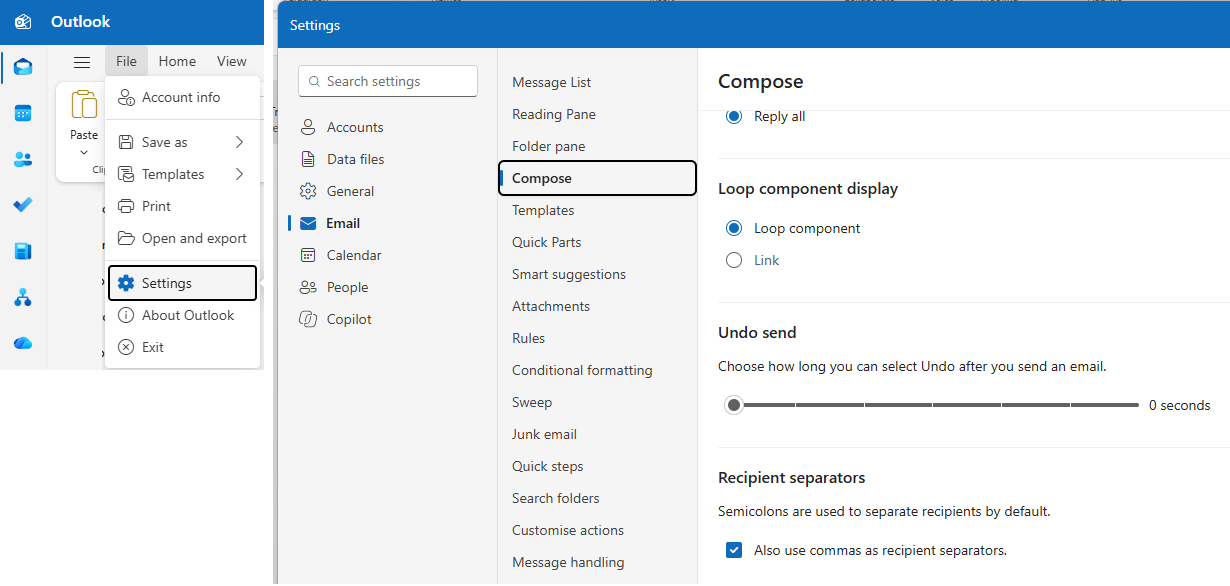
- Go to File, then Settings, then Email, then Compose.
- Under Undo send, drag the slider to 10 seconds.
- Select Save.
Now, after you press Send, an Undo button appears at the bottom of the screen for a few seconds.
3. Snooze emails you don’t need to deal with yet
This is a great one: If an email doesn’t need action until later, snooze it. It disappears from your inbox and comes back to the top at the time you choose.
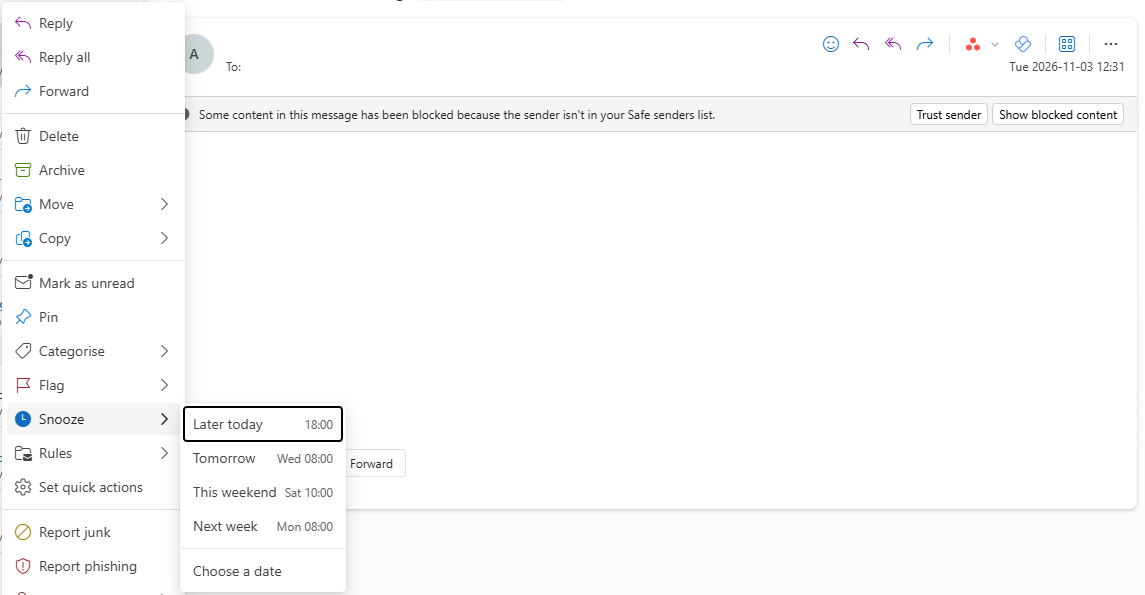
- Right-click the email and select Snooze.
- Choose a time, such as Tomorrow or Next week, or pick your own.
It’s a much tidier alternative to leaving emails sitting in your inbox as a reminder, and a handy way to bring an email back just when you need to act on it. We use this one all the time.
4. Pin important emails to the top
Pinning keeps an email at the top of your inbox, however many new ones arrive. It’s ideal for things you refer to often, such as a supplier’s contact details or a project brief.
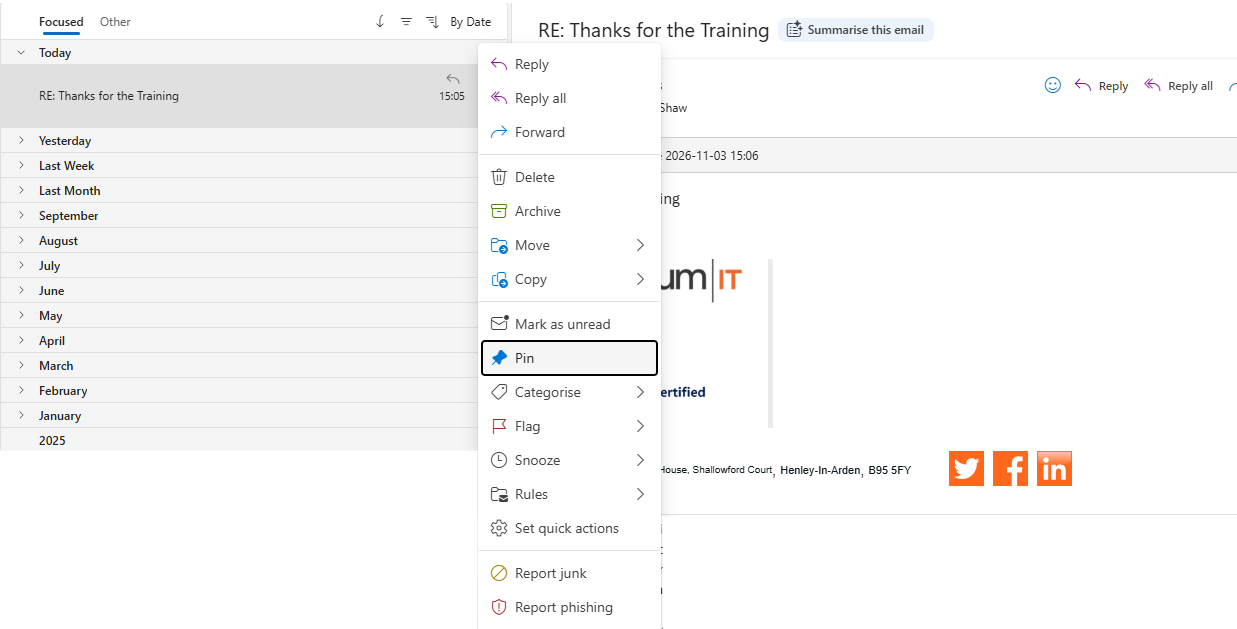
- Right-click the email and select Pin.
- To unpin it, right-click it again and select Unpin.
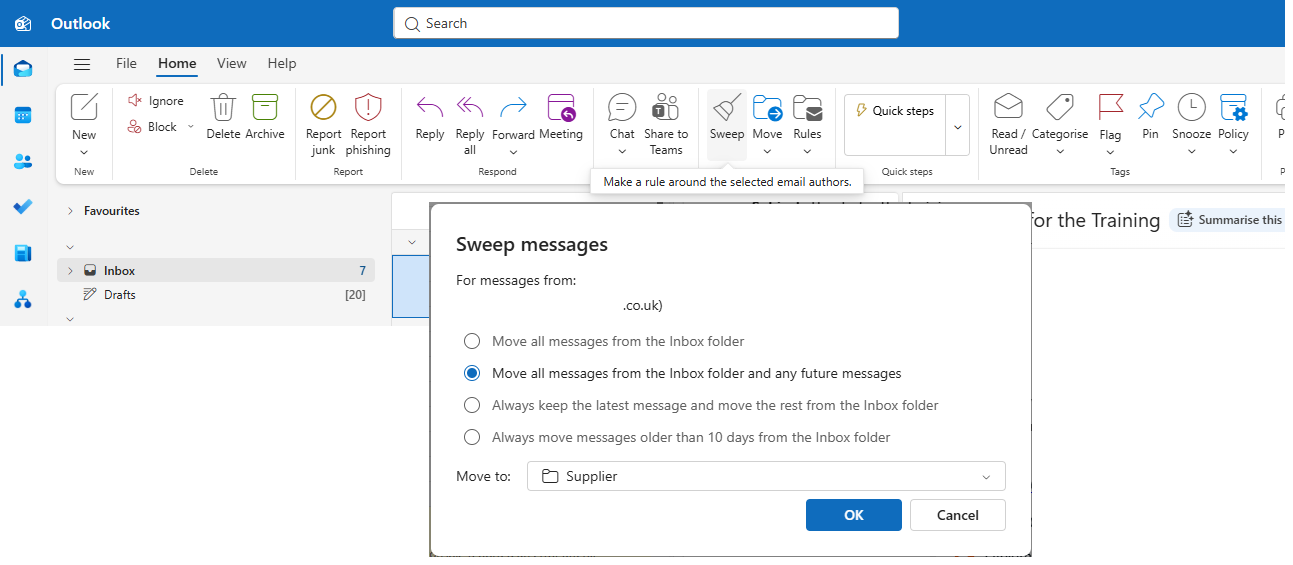
5. Use Sweep to clear clutter in one go
Newsletters and notifications can quickly bury the emails that matter. Sweep clears them out in a couple of clicks.
- Select an email from the sender you want to tidy up.
- Select Sweep on the toolbar.
- Choose to move or delete all emails from that sender, keep only the latest one, or do the same automatically with future emails too.
6. Let rules sort your email for you
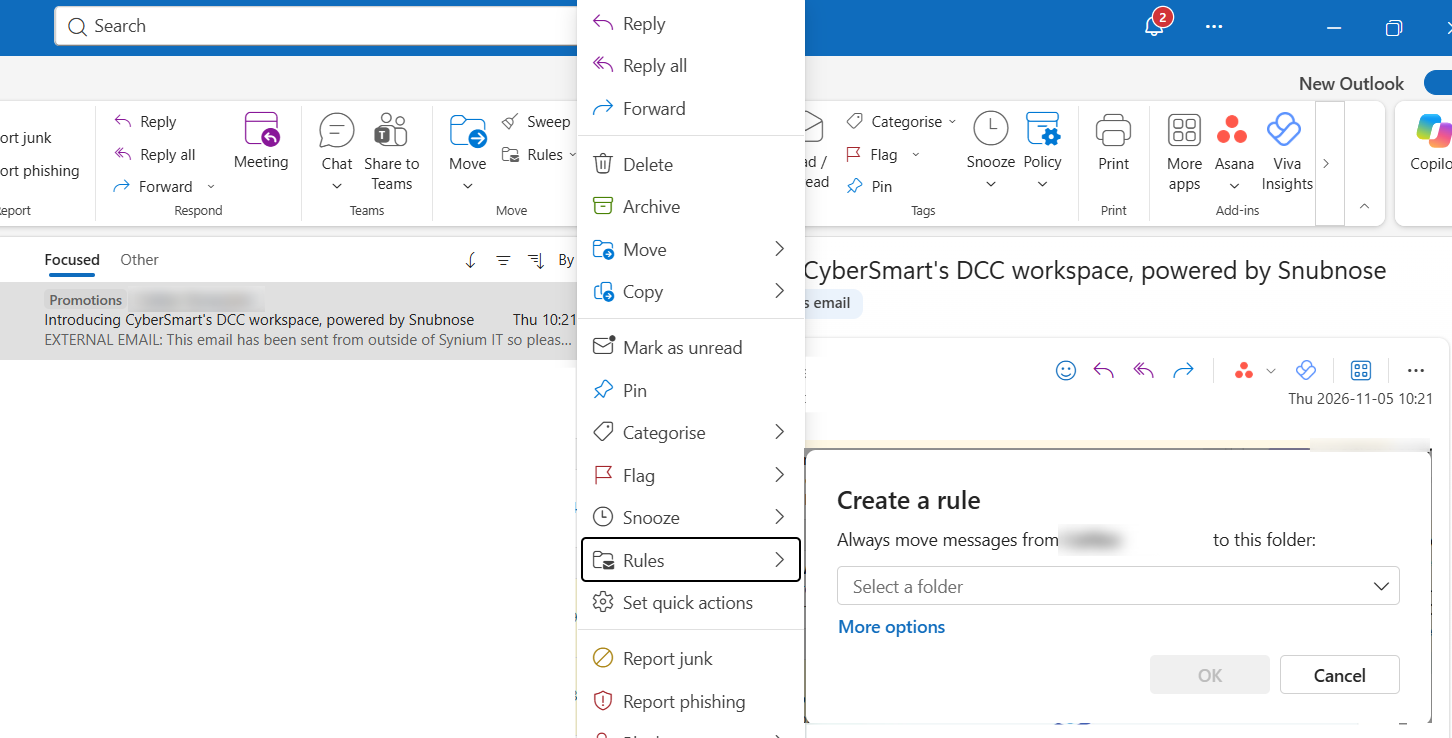
Rules move emails into folders as they arrive, so your inbox only holds what needs your attention. For example, you could send all invoices from a particular supplier straight to an “Accounts” folder.
- Right-click an email from that sender and select Rules, then Create rule.
- Choose the folder to move the emails to, then select OK.
- To see or edit all your rules, go to Settings, then Mail, then Rules.
One word of caution: if you ever spot a rule you didn’t create, especially one that forwards or deletes emails, call us straight away. Criminals who get into an email account often set up hidden rules like this.
7. Decide whether Focused Inbox is for you
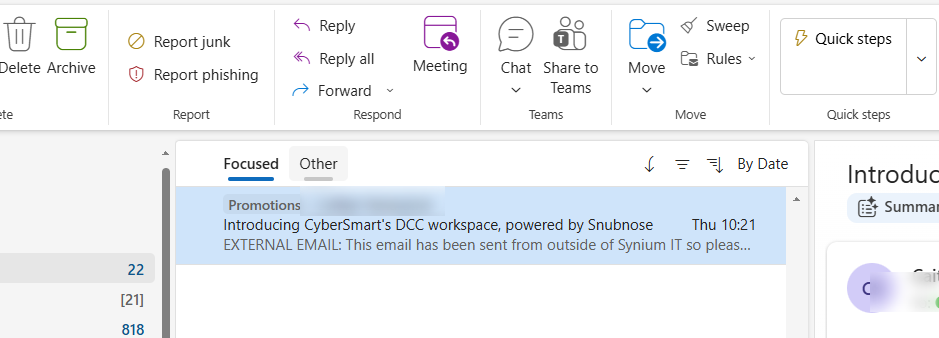
Focused Inbox splits your inbox into two tabs. Focused holds the emails Outlook thinks matter, and Other holds the rest. It’s a bit of a Marmite feature: some people love it, while others find they miss emails because they never check the Other tab.
- To turn it on or off, go to Settings, then Mail, then Layout, and find Focused Inbox.
- If you keep it on, you can teach it. Right-click an email in the wrong tab and choose Always move to Focused (or Other).
8. Save replies you type again and again
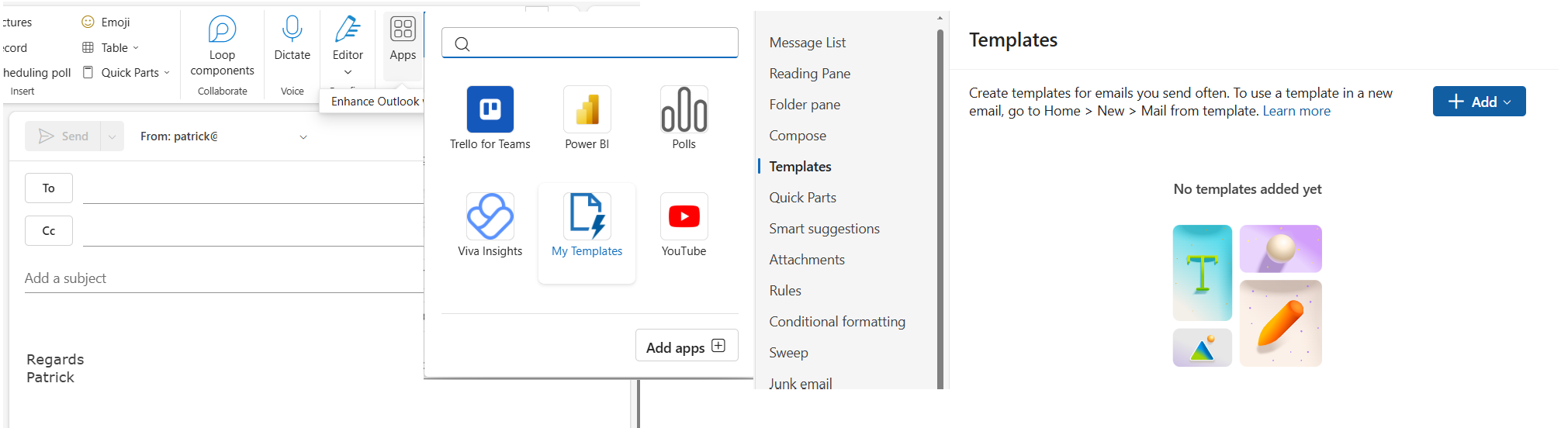
If you often send the same text, such as directions to your office, save it as a template.
- In a new email, open the Apps menu on the toolbar and select My Templates. This opens the Templates page in Settings.
- Select + Add, give your template a name, type the text and save it.
- To use it, go to Home, then New, then Mail from template.
9. @mention colleagues to get their attention
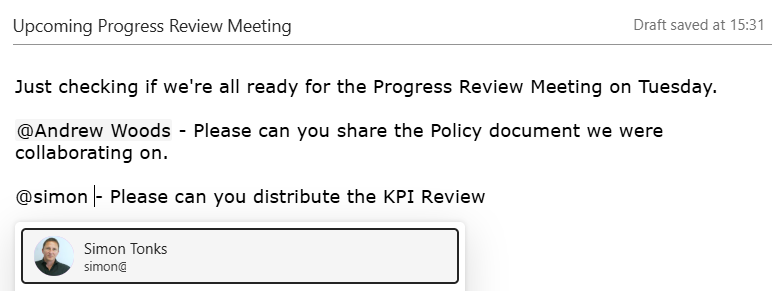
In the body of an email, type @ followed by a colleague’s name and pick them from the list. Their name is highlighted, they’re added to the email automatically, and Outlook flags to them that they’ve been mentioned.
It’s a simple way to make it clear who needs to do what, especially in emails sent to several people.
10. Search like a pro
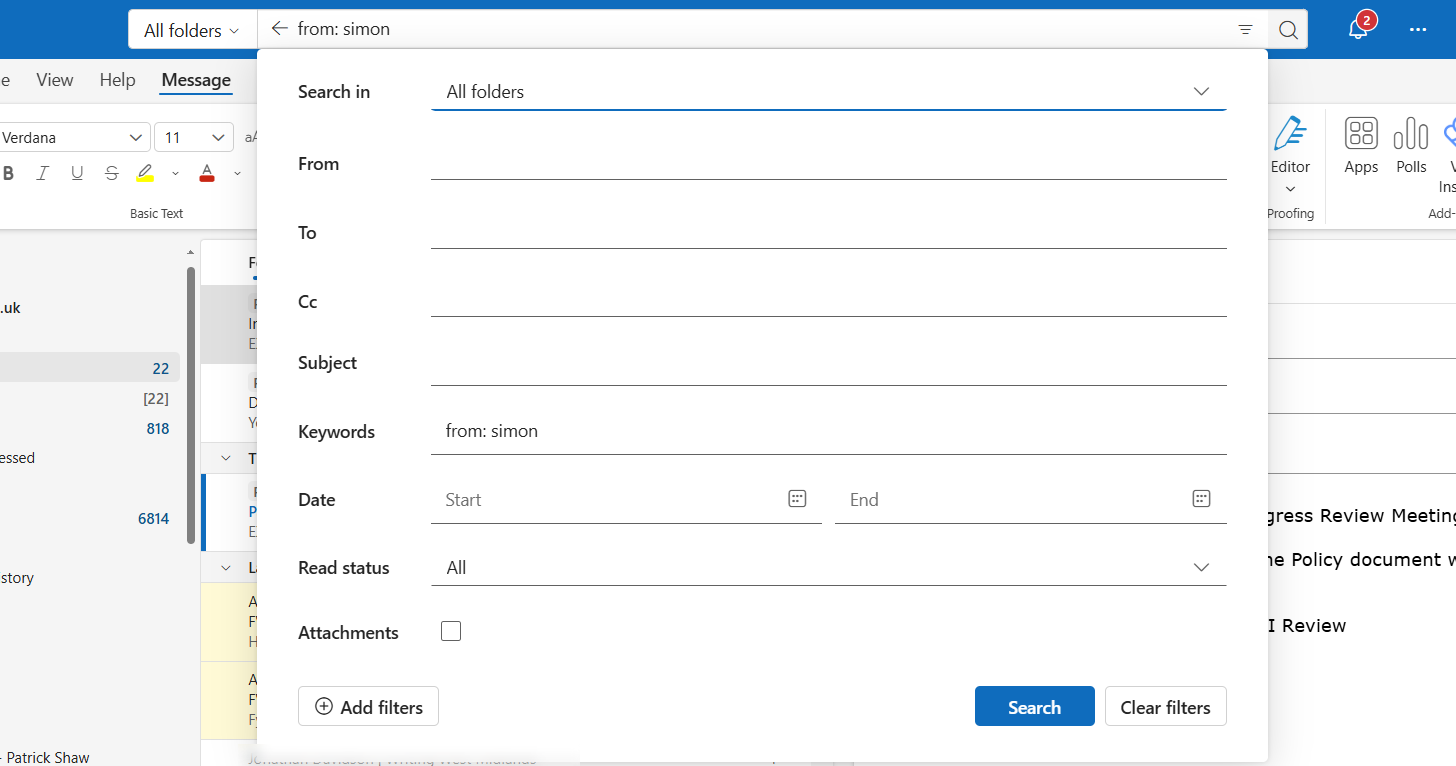
Outlook’s search box understands a few simple shortcuts that make finding an old email much quicker. Try typing these:
- from:sarah finds emails from anyone called Sarah.
- subject:invoice finds emails with “invoice” in the subject.
- hasattachments:yes finds emails with attachments.
You can combine them, for example from:sarah hasattachments:yes. You can also use the filter button beside the search box to narrow results by date, folder or sender.
Using these Outlook tips in classic Outlook
Most of these Outlook tips work in classic Outlook too, though a few are found in different places and some aren’t available at all:
- Schedule send: in a new email, go to Options, then Delay Delivery.
- Rules, Focused Inbox, @mentions and search all work in much the same way.
- Templates: use Quick Parts on the Insert tab to save and reuse text.
- Undo send, Snooze, Pin and Sweep are only available in new Outlook and Outlook on the web.
Not sure which version you have? If there’s a toggle saying New Outlook at the top right of the window, you’re on classic Outlook.
Want a hand?
If you’d like help setting up any of these Outlook tips, or you’re thinking about moving to new Outlook, just give us a call on 0121 663 0203 or log a call through the portal. And if you’re going away soon, here’s our guide on how to set up Out of Office replies in Outlook.
