



15 Jan How to Access the Self Service Portal
Posted at 09:39h
in Blog
Synium IT’s Self Service Portal is your one-stop-shop for logging requests, and checking progress on existing requests. Follow these steps to access the Self Service Portal.
Step 1 – Go to help.synium.co.uk.
Step 2 – Click on the Sign in with Office 365 button:

Step 3 –
- If you are prompted to sign-in, enter your Office 365 username (email address) and password.
- If you are already signed in to your Office account, simply select your Office 365 account from the list:
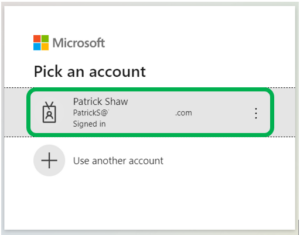
Step 4 – The first time you sign in to the Self Service Portal, you will be asked to enter a verification code.
- Check your email for an email with the Subject “Your Synium IT Self Service Portal Verification Code”.
- Please note that the email may be in your Junk Mail folder.
- Enter the 6-digit verification code on the Self Service Portal Login page.
- Tick the box Don’t ask again on this browser.
- Click Submit.
- Please note that you will have a limited amount of time to enter the verification code, but you can request another code by attempting to login again.

You have successfully logged in to the Self Service Portal when you can see the home page (shown below):
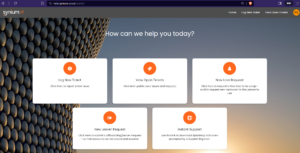
If you are having any problems with this, then please fill out the form below – this will create a ticket on our Helpdesk, and one of the team will be in touch to help you out.
