




01 Jan How to Install Microsoft Authenticator
How to install the Microsoft Authenticator App and set up 2FA
You will need to install and set up this app, either on your personal or work mobile phone, before you can access your emails.
Part 1 – On your mobile phone
Step 1 – Connect your phone to either your home Wi-Fi or the guest Wi-Fi in the office. If you need help with this, please ask a colleague.
Step 2 – Open the App Store or Google Play Store app on your phone and search for the Microsoft Authenticator app (as shown below):
Important
Make sure it is the app published by Microsoft Corporation.
iPhone: Andriod:
 | 
|
Step 3 – Once installed, open the Microsoft Authenticator app on your mobile phone. This is the icon for the app you will need to open:

Step 4 – Choose “Add account”:

Step 5 – Choose “Work or school account”:

Part 2 – On your computer
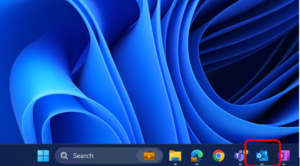
Step 1 – Open up the Outlook app on your computer:
Step 2 – Enter your email address, then choose “Connect”:

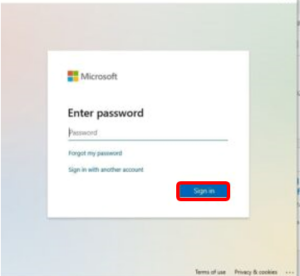
Step 3 – Enter your email password and choose “Sign in”:
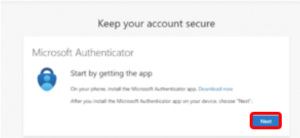
Step 4 – You will then see the following prompt. Please choose Next:

Step 5 – Choose next again, as shown below:
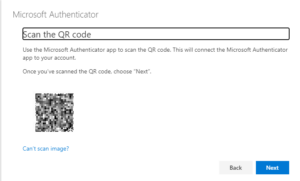
Step 6 – You will now see a QR code on your screen, ready for the next step:
Part 3 – Go back to your phone
Step 1 – Back on your phone, after selecting Work or school account you will get a choice to “Sign in” or “Scan QR code”. Please choose the “Scan QR code” option:

If your mobile phone asks for permission to access your camera, please allow this.
Step 2 – Scan the QR code on your computer screen with your phone.
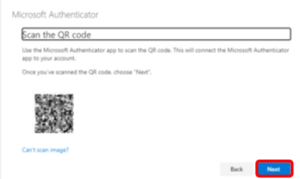
Step 3 – Once this is scanned, press next on your computer:
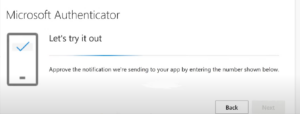
Step 4 – You will be asked to try it out. A code will appear on your computer screen:
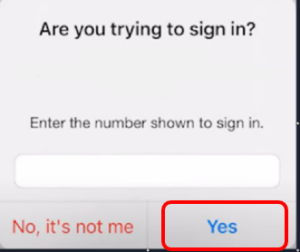
Step 5 – Enter this code on your phone in the box below and choose “Yes”:
Step 6 – Once you have pressed on “Yes”, you should see “Notification approved”:
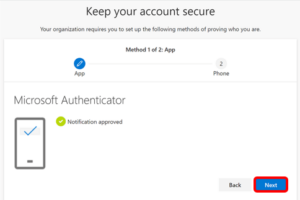
If you do not receive conformation that the notification was approved, This means that 2FA registration has not been successful. Please contact Synium IT for additional support.
After you have completed all these steps, your 2FA is fully set up and your account is ready to use.
