





21 Nov Setting up Emails on phones
Posted at 13:08h
in Blog
Setting up work Emails on your phone is an easy-to-follow process. This article will walk through the steps in order to get your account set up on your phone.
iPhones
(scroll down for the Android instructions)
- On the main home screen of your Apple Device, navigate to the app store with the below icon:
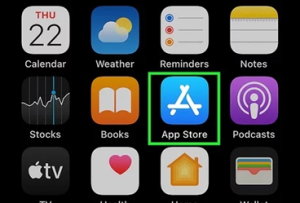
- Once in the app store, click on the search bar and type in “Microsoft Outlook”.
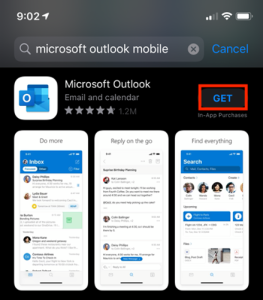
- Please make sure the app is identical to the one shown in the image and press on the “GET” button.
- Once the app is installed, please open the app and enter your Email in the box shown. This will be your work Email address.
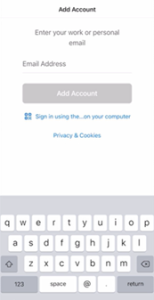
Once typed in press “Add Account”.
- If prompted to choose your Email provider, please select Office 365.
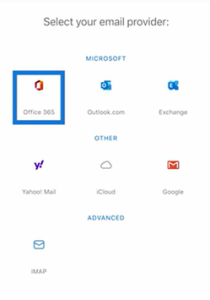
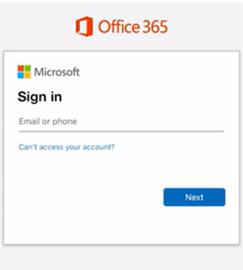
- You will then be taken to the Office 365 log in page. You will need to enter your work Email in the box on the log in page below.
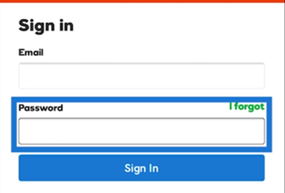
- Next, you will be prompted to enter your password. This password will be your Microsoft 365 password, which is the same password you use to log into your Email, SharePoint, Word, OneDrive and Teams.
- You will then receive a prompt similar to the one below to Authenticate your app.
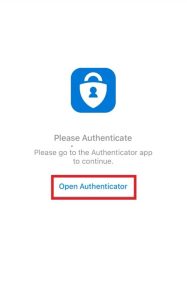
If you already have 2FA set up on your phone, press on Open Authenticator. This will take you to the Authenticator app. You will need to sign in and approve any 2FA requests you get.
- Once you have authenticated, you can go back to Outlook and your Email account should now be added.
Android phones
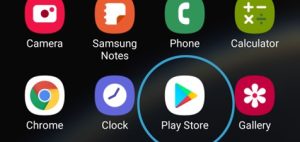
- On the main home screen of your device, navigate to the play store with the below icon:
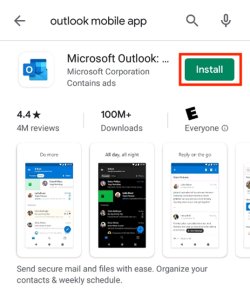
- Search for the “Outlook App” and install it. Please make sure it is identical to the one shown in the image below.
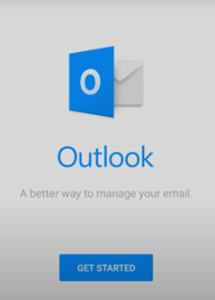
- Once the app is installed, please open it and press “Get Started”.
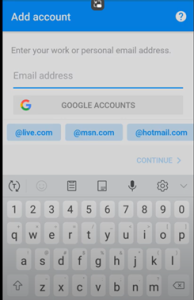
- Enter your work Email address and press continue.
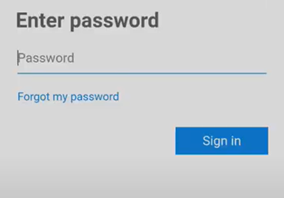
- Next, you will be prompted to enter your password. This password will be your Microsoft 365 password, which is the same password you use to log into your Email, SharePoint, Word, OneDrive and Teams.
- When signing in you may be prompted to authorise your account with 2FA. It will either send a verification text message to your mobile phone, or ask you to go to the Microsoft Authenticator App and approve the sign in.
- Once you have completed the authentication, your Email account will be added to Outlook.
